
TurboLaw Blog
UPDATES, TIPS, AND MORE!TurboLaw Document Software Version 5.08 Released
TurboLaw Document Software version 5.08 has just been released. The major change in this new version is the removal of the state & area of law restrictions, which gives access to all states and all areas of law. (This is to match with TurboLaw’s new single-subscription model.)
This update also increases the required version of the Microsoft .NET Framework (on which TurboLaw is built) to version 4.5.2. If your computer doesn’t have this version of the .NET Framework installed, TurboLaw will install it for you.
As always, we hope you enjoy this latest version of TurboLaw – and if you have any questions or feedback, we’d love to hear from you!
TurboLaw Document Software Version 5.06 Released
TurboLaw Document Software version 5.06 has just been released and as usual we’ve made a host of changes both big and small in response to feedback we’ve received from users.
- Added a link for “Manage my Account” under the “Help” tab which links you directly to your online account management
- Updated all the File Open/Save/Browse dialog boxes with new versions to support modern Windows visual design
- Document messages (such as reminders of when forms must be printed on certain color paper) now display when opening “blank” documents
- Fixed an issue where a merge field for the Claim Representative’s phone number was missing from the MA/Workers Compensation edition
As always we hope you enjoy this new version of TurboLaw. If you have any thoughts or feedback we’d love to hear from you!
TurboLaw Document Software Version 5.04 Released
We’re starting off 2018 with a new release of TurboLaw Document Software – Version 5.04. This new version adds support for our new Vermont edition, as well as a number of other changes:
- License numbers instead of registration codes
- TurboLaw is now activated with a license number rather than a registration code – no more worrying about registering or renewing!
- Automatic daily document database refresh
- TurboLaw will now automatically refresh the document database once per day to ensure that you always see the latest documents.
- Fixed an “oops” error when trying to open a case with a missing folder
- Fixed some minor display issues for high DPI displays
As always we hope you enjoy this new version of TurboLaw and if you have any thoughts or suggestions, please don’t hesitate to let us know!

TurboLaw Document Software Version 5.03 Released
TurboLaw Document Software version 5.03 has just been released and as usual we’ve made a host of changes both big and small in response to feedback we’ve received from users.
- Added support for new area of law: Connecticut Family Law
- Added an “email” option for parties in MA and RI Probate cases
- Added support for additional name display formats in documents
- Added support for both “Common” and “Non-Common” children in documents
- Added explicit entries for “Heir,” “Beneficiary,” and “Devisee” to MA/Probate
- Relabeled “Beneficiary” to “Trust Beneficiary” in MA/Probate
- Updated the address for the MA Franklin County Probate Court
- Improved support for MA/Probate Guardianship cases
- Improved & simplified the layout of the “Case Details” printed report
- Fixed a rare “oops” error that could happen only under very specific circumstances (when accessing TurboLaw using Remote Desktop from a Mac running OS X with folder redirection enabled and file names ending in “[1]”)
As always we hope you enjoy this new version of TurboLaw. If you have any thoughts or feedback we’d love to hear from you!
New Child Support Guidelines coming for Massachusetts
One the preview version is released, TurboLaw will pick up the preview version of the form automatically when you open the program (so long as you have a current TurboLaw subscription and haven’t turned automatic updates off).

TurboLaw Time and Billing 3.12 Released
 Summer’s finally here, and so is the latest release of TurboLaw Time and Billing: Version 3.12! We’ve been hard at work making changes and improvements based on the feedback and suggestions that we’ve received from our users.
This update is a fairly major one, with tons of changes and improvements – including an update to the database, which means after installing the update you’ll see a brief “upgrading database” message.
As for the actual changes themselves, here’s the details on all the changes we’ve made in this version:
- You can now make billing categories (for time/expenses/discounts) inactive so they won’t clutter up your list if you’re not using them anymore
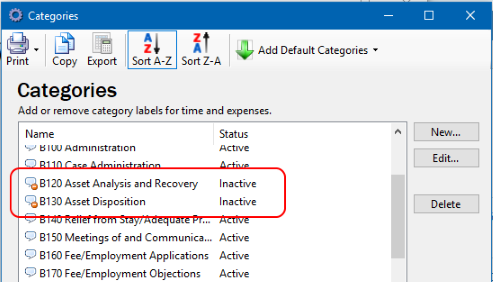
Categories can now be made inactive
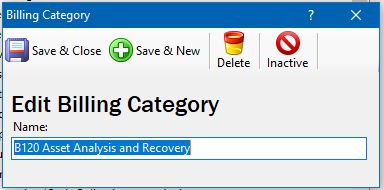
New Active/Inactive button when editing categories
- We added a column to show the billing rate for when you’re viewing a list of time entries, so you don’t have to open up entries just to see what billing rate was used
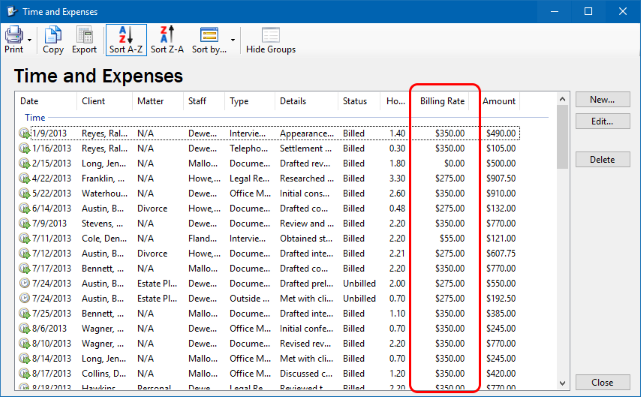
New column showing the billing rate
- You can now set a custom starting ID number for clients & matters and have this number automatically increment as you enter new clients or matters
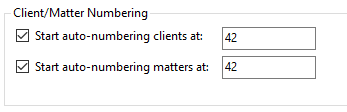
Options for enabling auto-numbering
- Changed the way dates are saved to prevent issues when multiple users of the same database use different date formatting settings (e.g., whether you format dates as “day/month/year” or “month/day/year”) in Windows or if you are a single user who changed your date formatting settings in Windows
- Changed some reports so they now sort by date (which makes more sense) instead of by client name
- Changed the way bill details are loaded to prevent “oops” errors from happening under certain rare circumstances
- Changed the wording of the “oops” message to make it clear that although we receive error reports, they are anonymous, so if you keep getting an “oops” error please call us or email us so we can help you
- Changed the text box where you enter “hours” for time to behave consistently after clicking “Save & New”
- Added a “License” option to the “Help” menu so you can view the license agreement again for TurboLaw Time and Billing
- Fixed a minor issue where the drop-down boxes in the “Custom Billing Rate” window would not clear properly when clicking “Save & New”
- Fixed an accessibility issue where certain toolbars were not accessible using the keyboard
- Fixed a minor issue where un-checking items from a saved bill would not update the displayed total or balance until after the bill was saved (unlike when creating a new bill, when it updates immediately after you check or uncheck an item)
- Fixed an issue where the “previous balance” field for a bill would include payments made the same day as the bill in the previous balance when they shouldn’t be
- Fixed a minor issue that would cause the “Do you want to save your changes” prompt to appear after clicking “Save & Close” for a time entry
- Made it impossible to edit items on a bill and change the client they are assigned to something that differs from the bill on which they appear
- Fixed an issue where editing a time or expense entry associated with a client/matter/staff member that had been made “inactive” would cause the drop-down list to appear empty (with nothing selected) when editing that item
- Fixed an issue where some items on the “dashboard” view were not sorting by date properly
- Fixed an issue where the bill template wouldn’t change if you tried to change it from the “Edit Bill” window if the client had a non-default template selected
- Fixed a minor issue where the “Export Clients” window started out showing only active clients even though it said it was showing all clients
- Fixed a minor issue where the refund amount formatting in the “Enter Refund” window would stop showing the currency symbol
- Internal changes to preclude the possibility of accidentally saving a bill to the wrong client under certain extremely rare circumstances
- Fixed an issue where the splitter positions on the “dashboard” view were not saving properly
- Fixed an issue which could cause updates to not be downloaded under certain circumstances
- Fixed an issue where it was possible to change options for a report while the report was still being generated (but those changes would not be reflected in the report)
As always, current subscribers of TurboLaw Time and Billing will receive this new update automatically (unless you’ve specifically turned off automatic updates). We hope you enjoy this new version, and if you have any comments or suggestions or ideas you’d like to see in future updates, please don’t hesitate to let us know!
TurboLaw Document Software Version 5.02 Released
 Spring is finally here so is the latest update to TurboLaw Document Software – version 5.02!
This version is a relatively minor update, focusing mainly on small improvements and fixes to minor issues. You can view the full list of changes in TurboLaw by clicking the Help tab and then clicking on What’s New, but here’s some of the most important changes in this version:
- Updated the address used for the Massachusetts Essex County Probate and Family Court
- For those who use TurboLaw in Parallels (or another VM) on a Mac, or those who frequently save files from TurboLaw Cloud to their Mac, you’ll no longer see the Mac-specific temporary files which begin with “._” in the “Saved Documents” list
- Fixed an issue with some documents not filling out certain fields (if the field in question was a drop-down box rather than a standard text field)
Although this update is a relatively minor one, don’t think that this means we’re out of ideas. We’ve got a long list of improvements we’re working on for the next version of TurboLaw, and of course we welcome any suggestions or feedback that you might have!
TurboLaw Time and Billing 3.11 Released
We’re very happy to announce the release today of TurboLaw Time and Billing version 3.11! This new version includes a number of features that are based directly on feedback we’ve received from users – so we know you’ll find them helpful and useful in your mission of keeping on top of your billing!
One new feature is the new “Unused Funds” report. This report will help you identify client funds that haven’t been used yet to pay a bill or that should be returned to the client. As with most reports, you can organize the report by client or by date as well as export the results into various types of files (such as PDF, Excel/CSV, or RTF) for further action if needed.
Another new feature we’ve added is the ability to duplicate existing custom templates, so that you can create copies of templates to work on without risking losing your original template. You could always do this by using the “Save as” option, but the new “duplicate template” feature makes it quicker and easier – and that’s what TurboLaw time and Billing is all about!
Finally, we’ve also made significant improvements to the performance of TurboLaw Time and Billing. This reduces the time it takes to start up when you first click on the icon as well as reduces the time it takes to show you large lists of items (e.g., clients, bills, matters, time entries, etc.). All of these improvements add up to a lot of saved time for you – so you spend less time waiting and more time doing your billing.
This new version also includes a host of other small improvements and fixes – you can see a list of these in TurboLaw Time and Billing by clicking the “Help” menu and choosing “What’s New?”
As always, we welcome and encourage your feedback regarding this new version – we’d love to hear from you! We hope you enjoy this new version of TurboLaw Time and Billing, and we look forward to bringing you even more improvements in the future.
TurboLaw Time & Billing 3.10 released
We just released version 3.10 of TurboLaw Time & Billing. Here’s a quick rundown of how this new update will help you:
- You needed an easier way to merge bills together, you now have it!
- Your bills and statement templates are now saved making sharing much easier.
- You have quick & easy access to items that you edit very frequently without having to go through bills or clients first because time, expenses, and payments are in the main window.
- You now also have the ability to export specific sets of clients to CSV and XLSX. This allows you to generate quick mail-merge lists for doing mailings. (Not only does it support exporting to XLSX for easy integration with Word’s mail merge feature, it also allows you to select groups of clients like “all clients I billed this month” or “all clients with retainer balances)
You can view the full list of new benefits and features below!
Thank you for being a customer and for all the feedback that led to this release. We’d love your feedback and welcome your suggestions at suggestions@turbolaw.com!
FULL UPDATE NOTES
- Added the ability to merge bills together
- Added the ability to merge staff members together
- Added the ability to merge matters together
- Improved the import/merge database process with better progress indicators and improved speed
- Time, expenses, and payments are now on the main navigation bar and can be viewed directly from in the main window
- Added the ability to resume using the stopwatch for a previously entered time entry
- Bill and Statement templates are now saved in the database so they are available to all users on a shared network setup
- Added the ability to set specific bill or statement template to be used for individual clients and matters
- Improved the “export clients” feature to allow for selecting what clients should be exported
- Added the ability to export to both CSV and XLSX (Excel) format when exporting clients
- Added a different icon for retainer payments to help distinguish them visually in lists
- Added an option to quickly create expense-only or time-only bills
- Added reports for written-of bills and for discounts/adjustments
- Added a “balance” column to the “Payments” list view window
- Improved the built-in error reporting system
- Fixed some display issues on high-DPI displays
- Removed the “Back” and “Home” buttons on the main screen (since they were redundant and rarely used); this frees up more screen space
- Fixed a display issue where the “payment remaining” text would be misaligned on Windows 7
- Fixed some issues with “previous balance” and “retainer balance as of” fields on bills that could show incorrectly under rare and specific circumstances
Old vs New
Sometimes it’s interesting to look back at old things and see how far we’ve come – so when we stumbled across some screenshots of TurboLaw from way back when in 2003, we thought it’d be fun to do a little post to show just how far TurboLaw has come.
2003 – Navigator
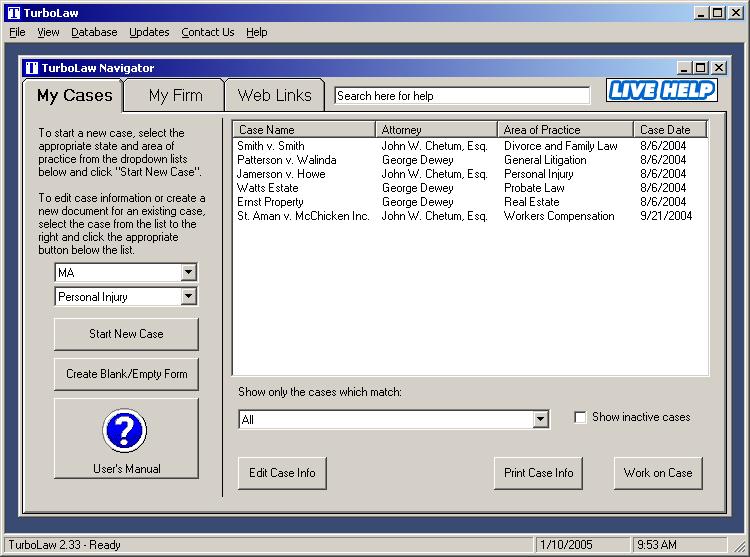
TurboLaw looked very different back then – although in 2003 this sort of look was considered by some to be state of the art. How the times have changed!
2016 – Navigator
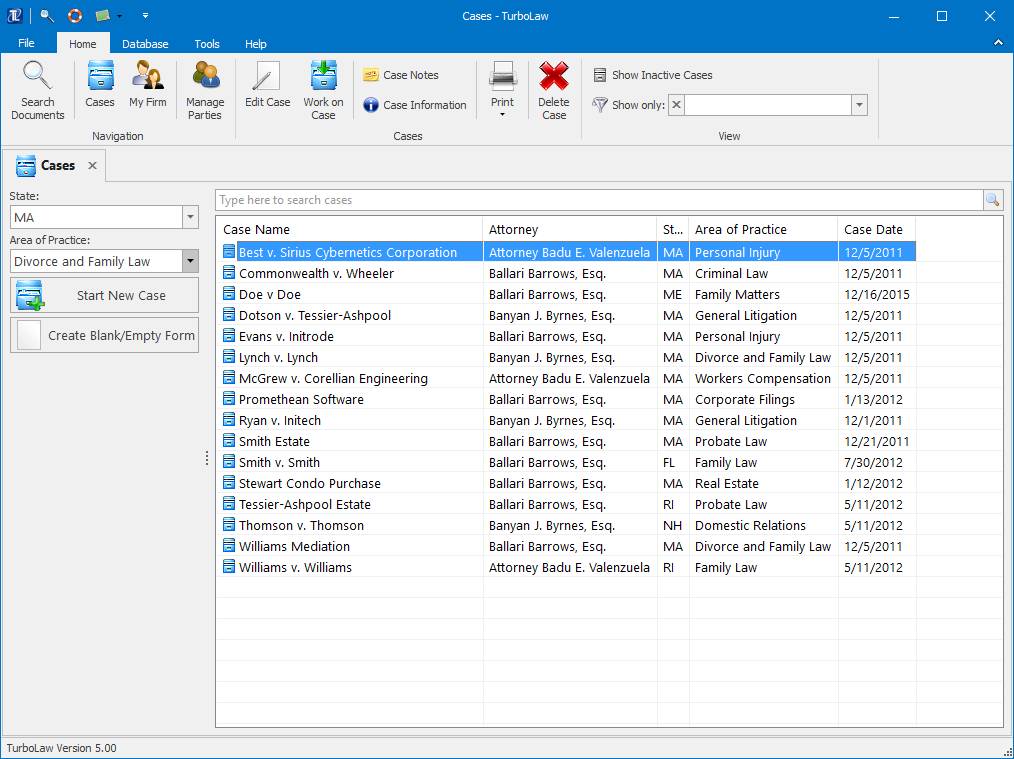
Now TurboLaw doesn’t just look good, but its appearance is based on research and feedback into how people use the program and has been carefully designed for ease-of-use.
Instead of a mish-mash of menus and buttons all over the place, everything is laid out neat and tidy at the top of the screen, with large & colorful buttons that clearly communicate their purpose, organized by what most people need to do most frequently.
2003 – Create Document
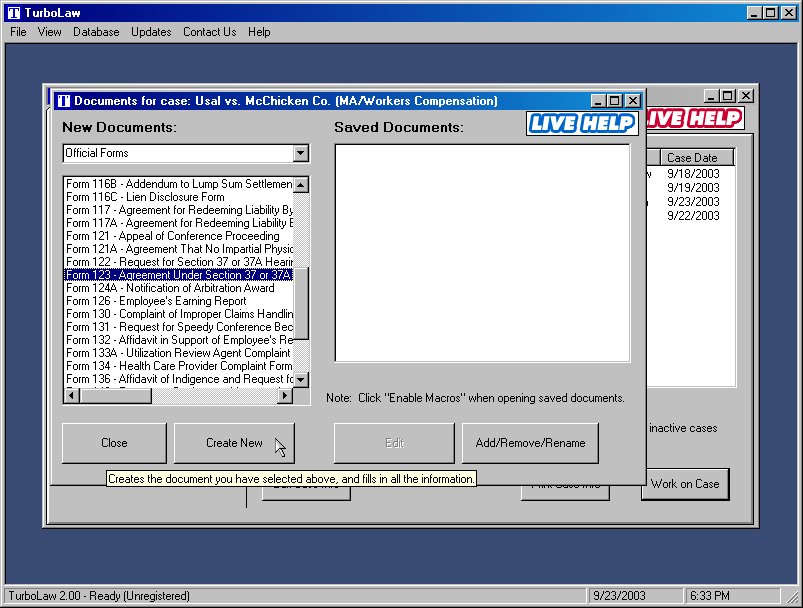
The old “create documents” window, although functional, was clunky to use – you couldn’t change the size of the list so you could read the entire name of a document, for example.
2016 – Create Document
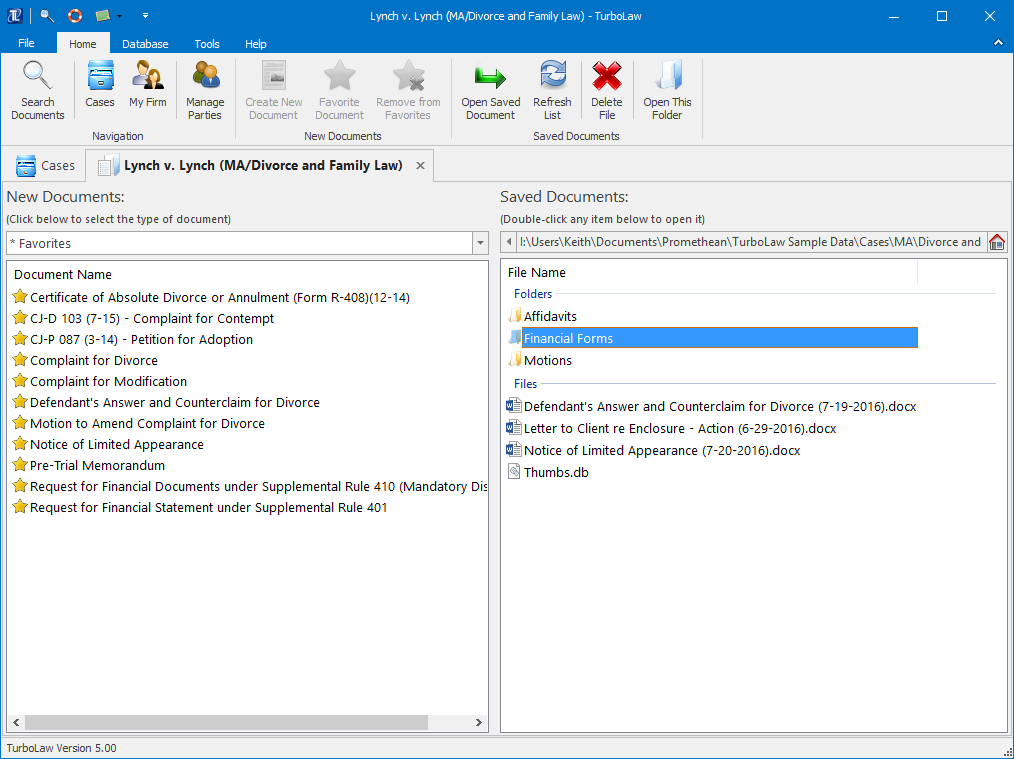
Now, not only can you change the size of the lists of documents, but you can sort the list (alphabetically or in reverse alphabetical order), scroll the list both horizontally and vertically, and you can mark documents as “favorites” so you don’t have to hunt for them each time.
On top of that, you can also have additional folders in your case file – no longer are you restricted to saving everything in one single place – and you can just drag & drop files in and out of TurboLaw.
2003 – Search
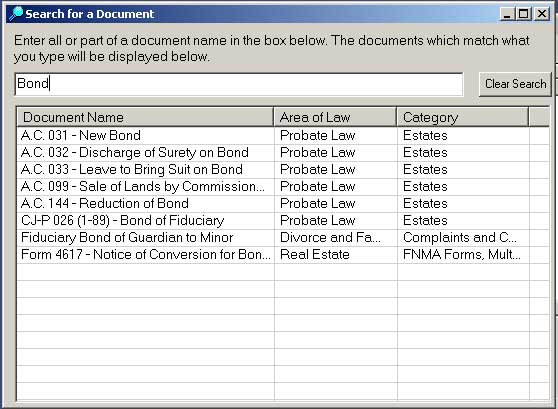
Searching for documents is something almost everyone does at some point, but this option was not always easy to find.
2016 – Search
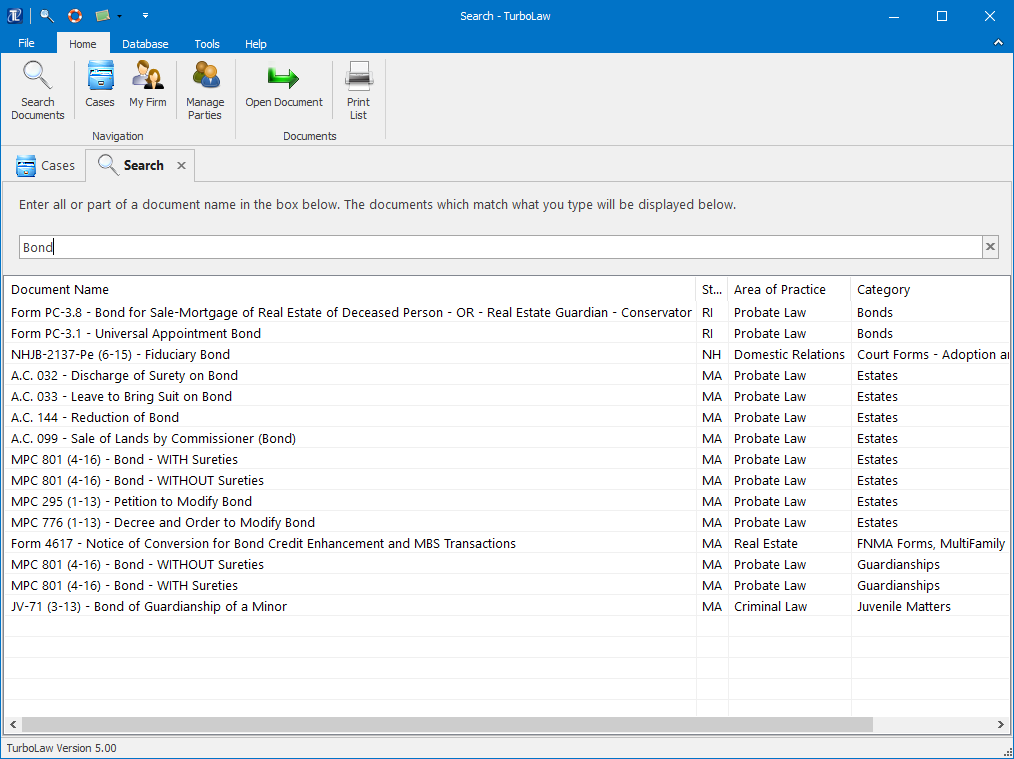
Now, though, “Search Documents” is the #1 button on TurboLaw’s toolbar/ribbon – always available to let you find a document quickly and easily.
2003 – Case Wizard
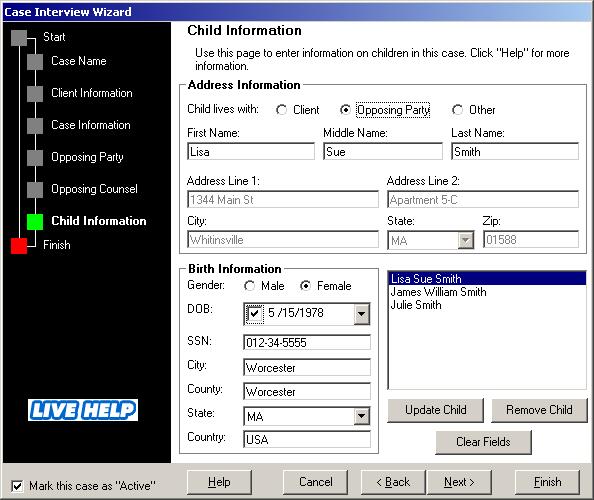
Entering information for a case used to be a bit of a chore (though it was still easier than typing it into each document manually) and in some places the screen was a bit overwhelming with all the places to type and buttons to press.
2016 – Case Wizard
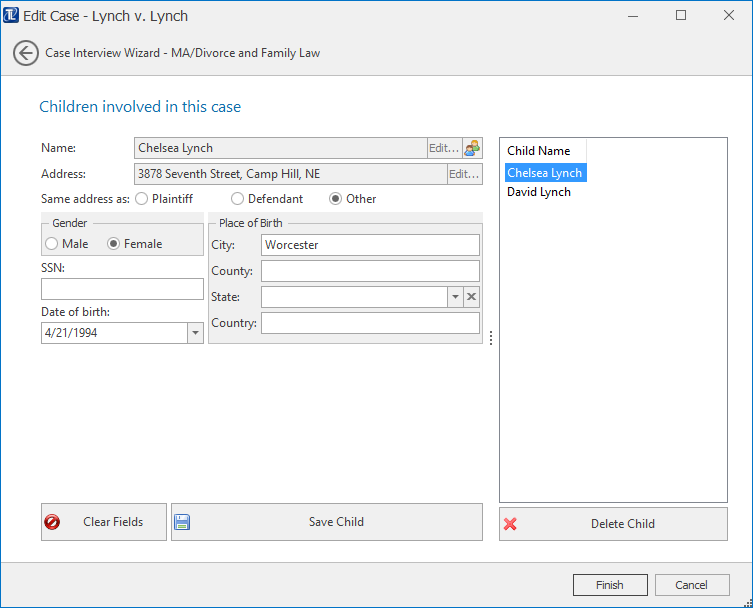
Nowadays though TurboLaw uses a streamlined interface for entering and editing case information – no more screens full of boxes and buttons. Instead, there’s just the basic boxes for names, addresses, and other information – all neatly arranged and logically grouped. Buttons for entering further details (such as the parts of a name or address) are kept right in the same text box, so there’s no confusion about what they do.
TurboLaw has come a long, long way over the years – and for those who remember the old look of TurboLaw and have been with us all this time, we greatly appreciate you. In the future, TurboLaw will continue to evolve to suit the needs of you, our users. We hope you’re just as excited as we are to see what that future TurboLaw looks like, too!